You can upload the requested documents directly from the Merchant Dashboard.
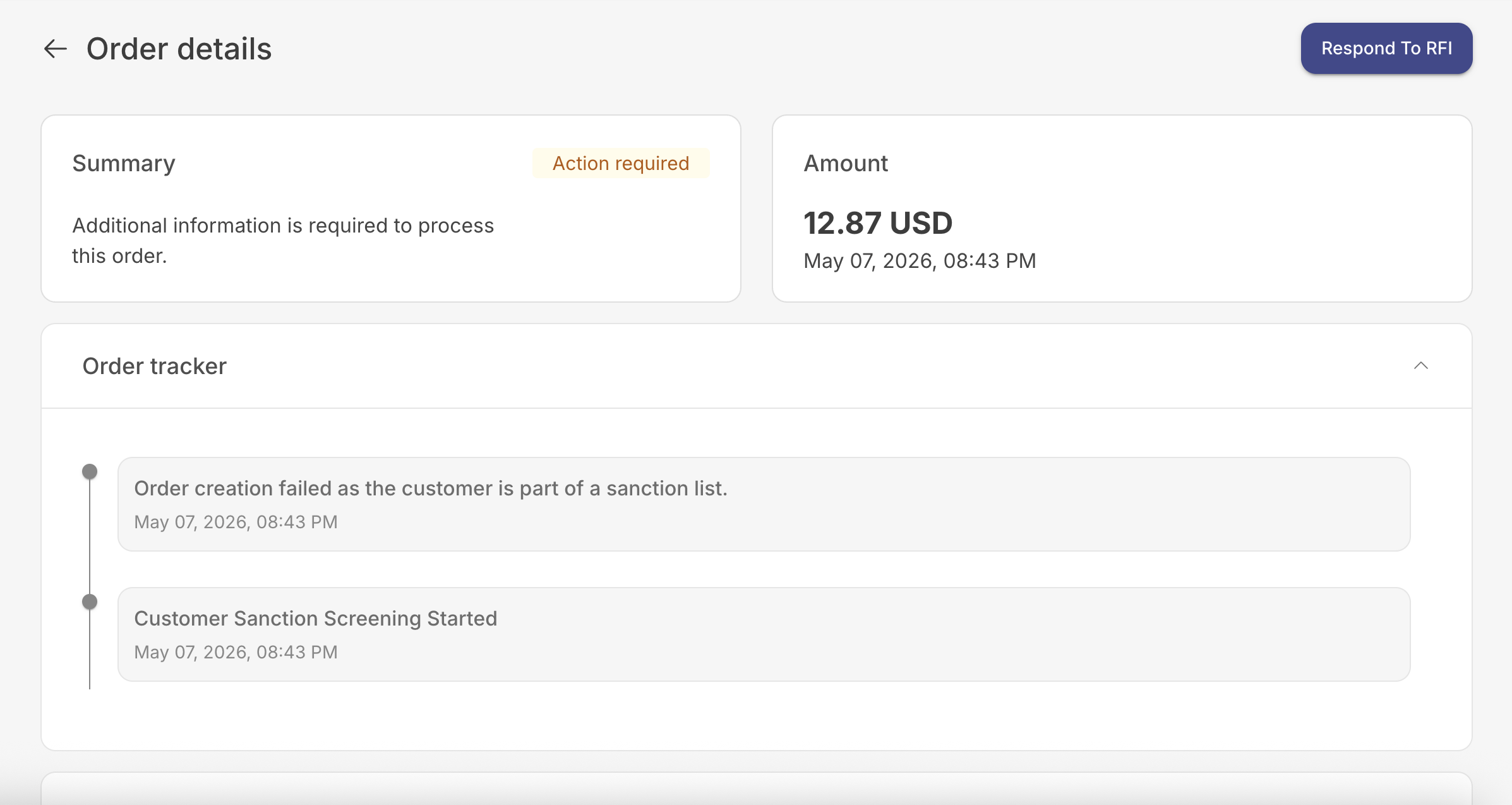
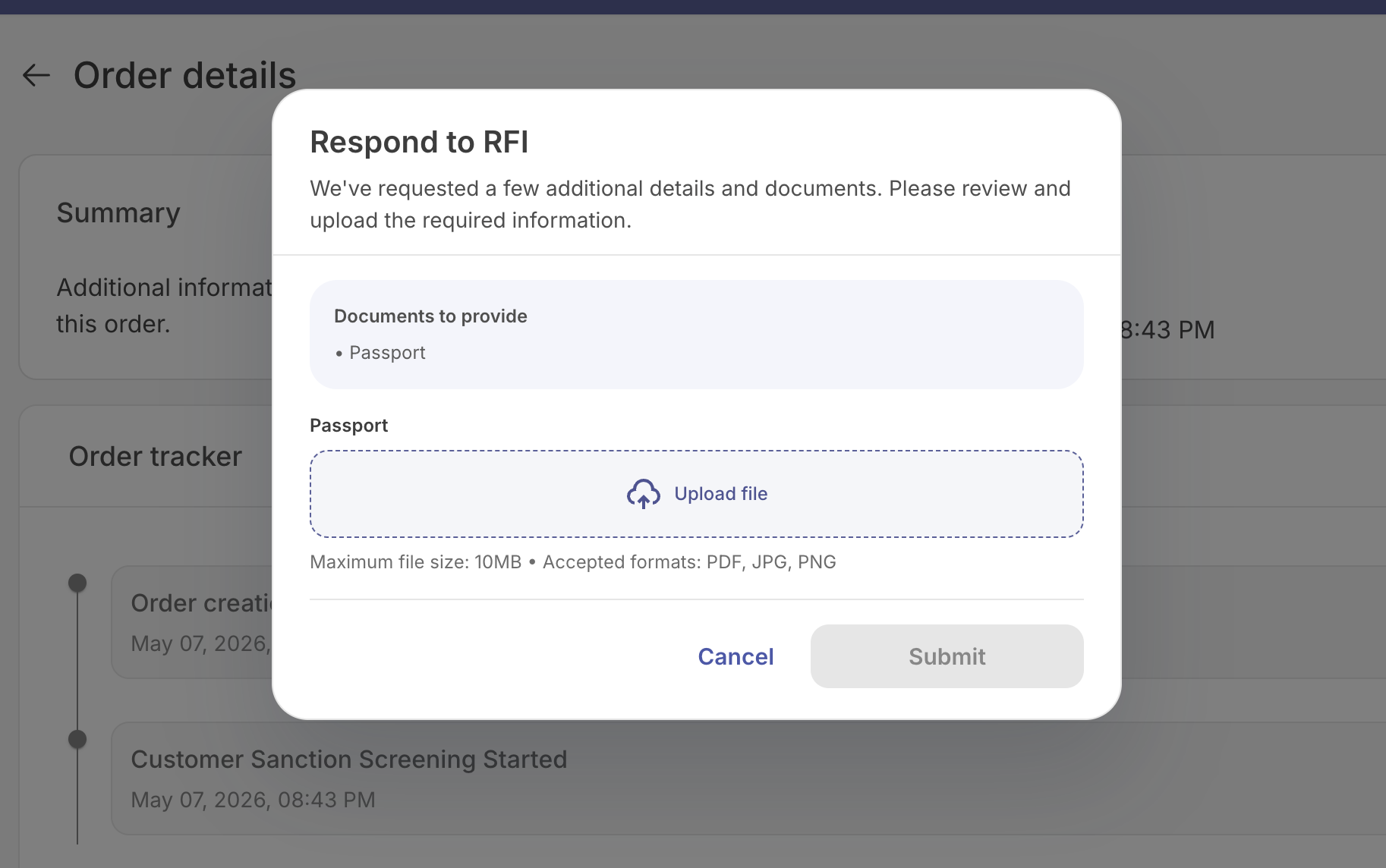
If you want to submit RFI documents through your backend, you can upload them using Glomo's Update RFI Document API.
During Create Order, Glomo runs risk checks as mentioned earlier.
If additional verification is required, the Create API returns:
- status:
action_required
What you get in the Create response
Along with the order_id, you'll receive:
rfi_documents- a list of required documents, each containing:rfi_document_idrequired_document_type(e.g., passport)
Important: Each rfi_document_id represents one specific required document. You must upload documents against the same IDs.
What happens after you upload
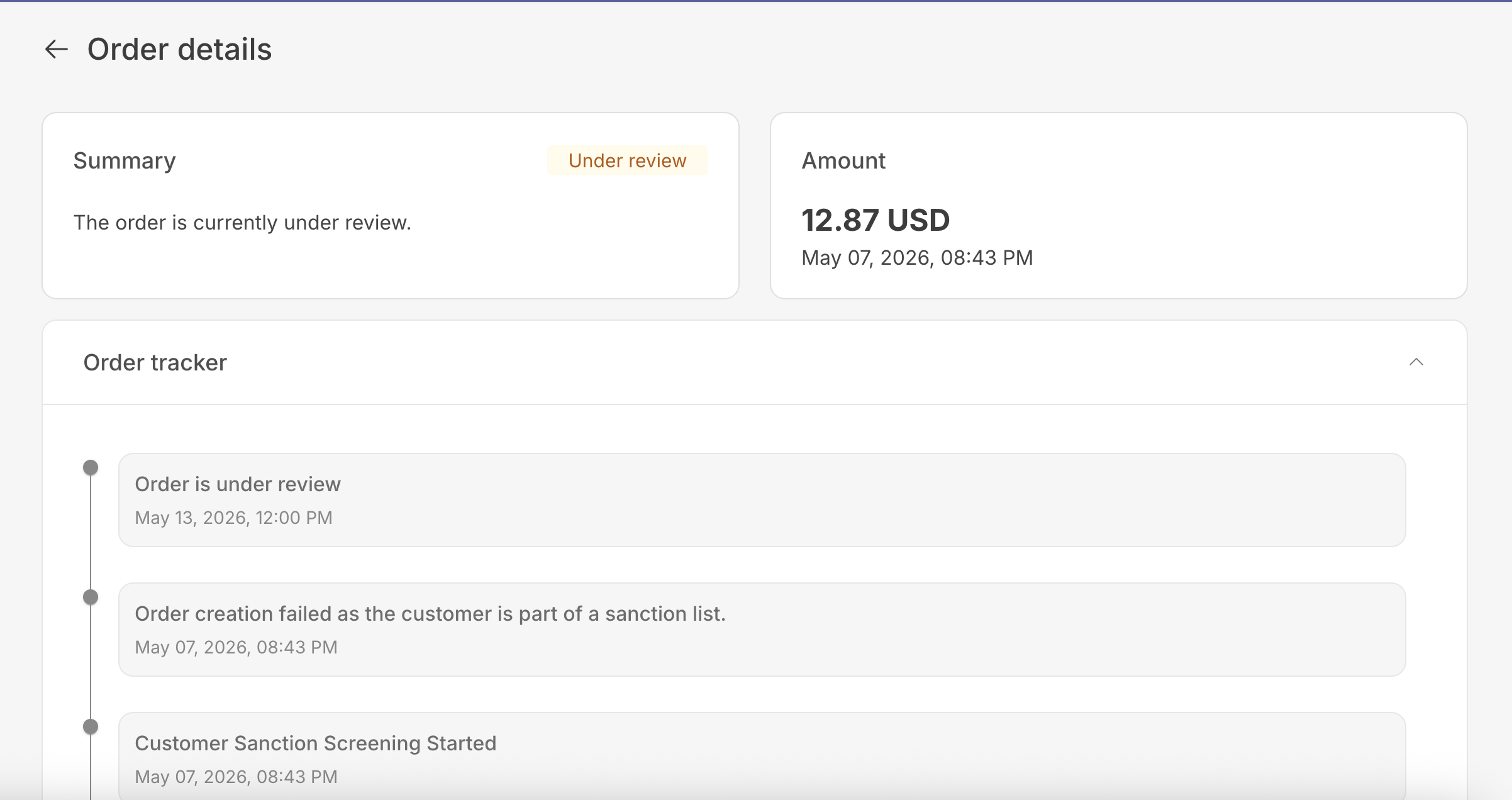
Once all required documents are uploaded successfully:
- Status changes to
under_review - Glomo reviews the submission
- Status updates are sent via callback/webhook
- If approved, status becomes active
- The Create Order API returns
action_requiredalong with:- The order ID
- One or more RFI document IDs with their required document types
- Upload the required documents using the Create a Document API.
- Call the Update RFI Documents for Orders API by supplying:
- The order ID returned from step 1
- The RFI document IDs returned from step 1
- The id returned from step 2
- After successfully uploading the documents, the Glomo compliance team will review the documents and any status update will be communicated via a callback.